How to Choose a Gaming Monitor: Refresh Rate, Panel Type, Resolution, and Curve
A gaming monitor feels fast or slow for four reasons: refresh rate, panel type, resolution, and curve. What each number means, and how to match the screen to the games you actually play.
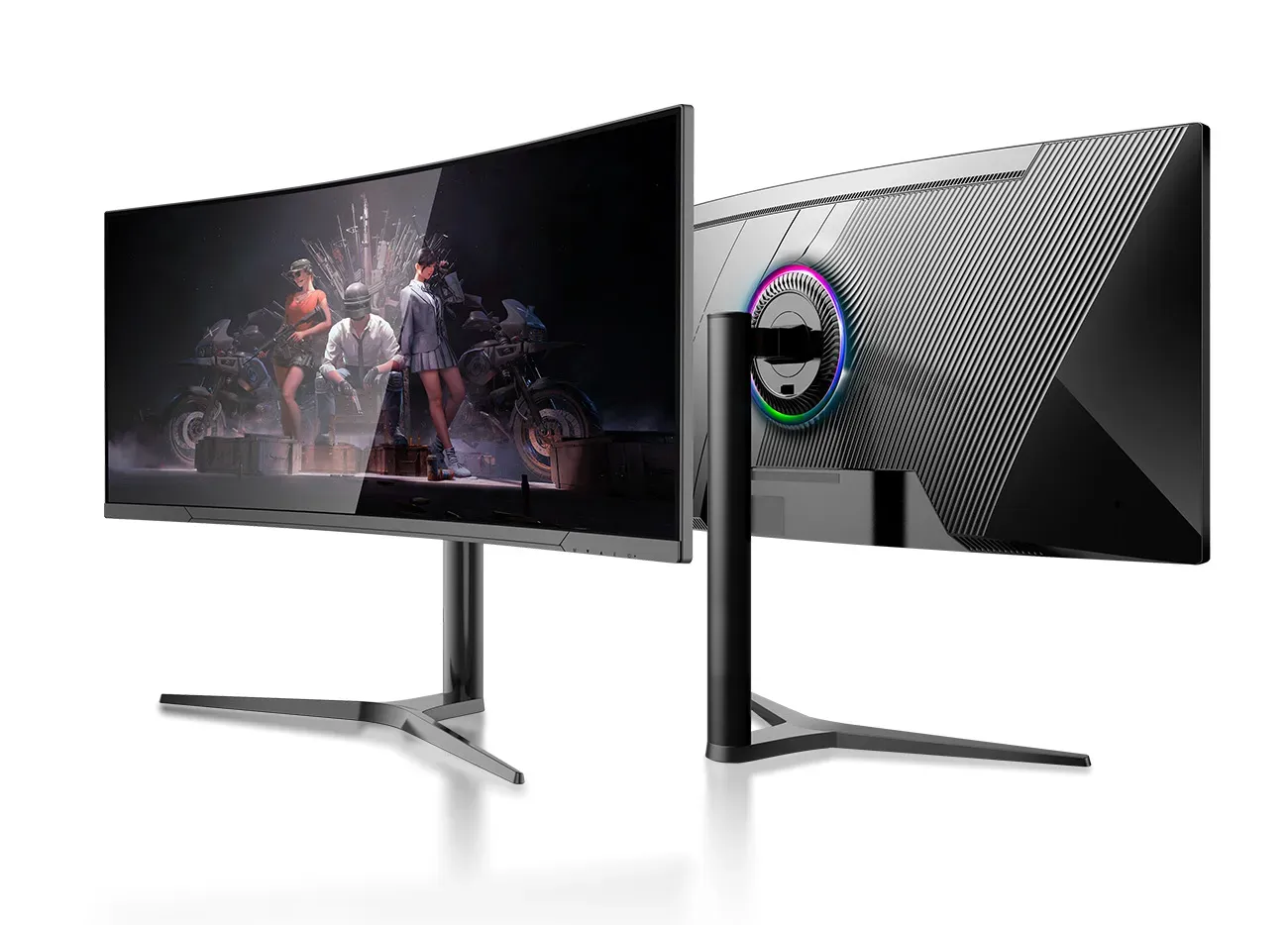
Why two gaming monitors with the same size feel nothing alike
Two 27-inch gaming monitors can sit side by side, show the same game, and feel like different machines. One is smooth and sharp; the other smears when you turn and tears when the action speeds up. The difference is not the size. It is four numbers: refresh rate, panel type, resolution, and curve. Get those four right for the games you actually play, and the monitor disappears — you stop noticing the screen and start noticing the game.
This guide explains what each number means, what it costs you, and how to match the screen to the game. No brand names, no hype — just the specification, and what it does in play.
1. Refresh rate: the number that decides smoothness
Refresh rate, measured in hertz (Hz), is how many times per second the screen draws a new picture. A 75 Hz screen draws 75 frames per second; a 165 Hz screen draws 165. The higher the number, the smoother motion looks — and the faster you see what just happened in the game.
The entry point for gaming is 75 Hz, published on 23.8-inch Full HD gaming models. It is a clear step up from a 60 Hz office screen and enough for story-driven games, strategy, and casual play. The next step is 100 Hz, published on 21.5-inch to 27-inch Full HD models — a good middle ground for mixed use, where the same screen does work by day and games at night.
Competitive play starts at 144 Hz. Published 34-inch curved ultrawide gaming monitors run at 144 Hz, and 144 Hz is the point where fast camera movement stops smearing and starts feeling direct. Above that, 165 Hz is published on 24.5-inch Full HD and 27-inch Full HD models, and 180 Hz on 27-inch QHD models — the range where esports players live. At the top of the published range, 32-inch models reach 240 Hz at Full HD and QHD, for players whose hardware can actually drive that many frames.
The rule is simple: match the refresh rate to the frame rate your graphics card can actually deliver in the games you play. A 240 Hz screen fed by 60 frames per second is a 60 Hz experience with a 240 Hz price tag. And check the port: the full refresh rate is usually only available over DisplayPort or the newest HDMI — the same screen over an older HDMI connection may cap at a lower rate. Confirm which port carries the full rate before you order.
2. Panel type: IPS vs VA, and what you give up either way
Panel type decides the trade-off between colour and contrast. There are two panels that matter in gaming monitors: IPS and VA. Neither is better in every way; they are better at different things.
IPS (in-plane switching) is the colour panel. Published IPS gaming monitors quote a 1000:1 contrast ratio, 178° viewing angles both ways, and 90 to 99% sRGB colour coverage. Colours stay accurate when you lean, when a friend watches from the side, and when the room light changes. IPS is the right choice for games where colour matters — open worlds, racing, anything you also use for photo or video work — and for any screen that more than one person watches.
VA (vertical alignment) is the contrast panel. Published VA gaming monitors quote a 3000:1 contrast ratio — three times the IPS figure — which means deeper blacks and a picture that holds up in a dark room. The trade-off is viewing angle: published VA models quote 170° viewing, narrower than IPS, so colours shift sooner when viewed from the side. VA is the right choice for dark, atmospheric games and for a single player sitting directly in front of the screen.
Response time is the other panel number. Published gaming monitors in the 23.8-inch to 34-inch range quote a 1 ms response time — the time a pixel takes to change colour. A slow response leaves a faint trail behind fast-moving objects, called ghosting. At 1 ms, ghosting is effectively gone at any refresh rate a buyer is likely to use. If a monitor does not publish a response time, ask before ordering: it is the number that decides whether fast motion looks clean or smeared.
3. Resolution and size: sharpness costs frames
Resolution is the number of pixels on the screen, and it decides sharpness — but every extra pixel costs graphics power. The three resolutions that matter are Full HD (1920×1080), QHD (2560×1440), and 4K (3840×2160).
Full HD is the competitive standard. It is published on gaming monitors from 23.8 inches to 32 inches, at refresh rates from 75 Hz up to 240 Hz. At 23.8 and 24.5 inches, Full HD looks sharp; at 27 inches it is acceptable; at 32 inches the pixels start to show. If your graphics card is mid-range, or your games are fast and competitive, Full HD at a high refresh rate is the right trade: smoothness first, pixels second.
QHD is the sweet spot for most buyers. It is published on 27-inch models at 165 Hz and 180 Hz, and on 32-inch models at up to 240 Hz. QHD has 78% more pixels than Full HD, so text and textures look noticeably sharper — and a mid-to-high-end graphics card can still drive it at high refresh rates. If you play one game for hours and also work on the same screen, QHD is the resolution to order.
4K is the sharpest picture and the heaviest load. It is published on 27-inch models at 60 Hz and on 32-inch models at up to 150 Hz, with a 5K (5120×2880) HDR400 variant published at the top of one gaming series. 4K suits single-player games where the picture matters more than the frame rate — and it demands a high-end graphics card to match. Buying 4K without the graphics power to drive it is the most common expensive mistake in gaming monitors.
Then there is ultrawide: a 34-inch curved screen at 3440×1440, in a 21:9 aspect ratio — roughly a third wider than a standard screen. It is published at 144 Hz with picture-by-picture and picture-in-picture modes, so it can show two inputs side by side. Ultrawide suits racing, flight simulation, and strategy games where the extra width is extra vision. It does not suit every game — some competitive titles do not support the ratio — so check your games before ordering.
4. Curved vs flat: when the bend helps, and when it does not
A curved screen wraps the edges of the picture toward you, so the corners are the same distance from your eyes as the centre. The curve is measured as a radius in millimetres: a 1500R curve is part of a circle with a 1500 mm radius. Published gaming curves run from 800R to 1800R — a smaller number means a deeper bend.
The standard gaming curve is 1500R, published on 34-inch curved ultrawide monitors at 144 Hz and on 32-inch curved models. At 1500R the wrap is noticeable without being distracting, and it suits ultrawide screens where the edges would otherwise sit far from your eyes. Deeper curves — 800R — are published on large-format curved monitors for casino and simulation use, where the screen surrounds the player. Shallower curves — 1800R — are a gentle bend for buyers who want some wrap without committing to it.
The curve helps most on wide screens and in single-player games. It helps least on a flat desk with two monitors side by side, where a curved screen leaves an awkward gap, and in competitive play, where most players still choose flat. If you have never used a curved screen, treat 1500R as the safe middle: enough wrap to feel it, not so much that it changes how you sit.
5. Ports: the connection that decides the frame rate
A gaming monitor is only as fast as the cable feeding it. Published gaming monitors carry HDMI and DisplayPort as standard, with some series offering two HDMI and two DisplayPort inputs. The newest published variant adds HDMI 2.1 and DisplayPort 1.4, which carry the highest resolutions and refresh rates the panel supports.
The check that matters: confirm which port carries the full refresh rate at the resolution you will use. A screen that does 165 Hz over DisplayPort may cap at 120 Hz or lower over HDMI, depending on the HDMI version. If your graphics card has DisplayPort, use it for gaming and keep HDMI for a console or a second device.
Some published models also carry USB-C with 65 W power delivery, which charges a laptop while carrying the picture over a single cable — useful if the same desk serves a gaming PC and a work laptop. And a 3.5 mm audio output, published on several models, is the simplest way to get sound from the screen to headphones or speakers without a separate cable from the PC.
6. Brightness and colour: what the numbers actually promise
Brightness on published gaming monitors runs from 250 to 350 nits (cd/m²). That is comfortable indoors under normal lighting, and it is the right range for a desk that does not face a window. Gaming monitors are not outdoor screens — if the desk sits in direct sun, no gaming monitor will fix it; move the desk or shade the window.
Colour coverage is the number to compare. Published gaming monitors quote 90 to 99% sRGB — the standard colour space for games and the web. At the top of the published range, a 32-inch QHD model quotes 95% DCI-P3, the wider cinema colour space, and high-end models quote 1.07 billion colours. HDR400 — high dynamic range at 400 nits peak — is published on the 5K variant of one gaming series, and it is the entry point for HDR gaming: brighter highlights, deeper shadows, and a picture that looks closer to what the game artists intended.
If you also edit photos or video on the same screen, colour coverage matters more than refresh rate. Order for the work the screen does most, not the work you imagine it doing.
7. Stand and extras: the parts you touch every day
A gaming monitor is adjusted more often than an office screen — leaned back for a long session, tilted forward for a competitive match, turned to show a friend. Published gaming monitors in the 23.8-inch to 34-inch range offer lift, rotation, swivel, and tilt stands, and VESA mounting for an arm or a wall bracket. Check the stand before you order: a screen that cannot rise to eye level causes neck strain within a week, and a wobbly stand ruins a fast game.
Two extras are worth knowing about. Adaptive sync — published as FreeSync and G-Sync Compatible on one gaming series — matches the screen's refresh rate to the graphics card's frame rate, which removes the tearing that appears when the two drift apart. And picture-by-picture and picture-in-picture, published on the 34-inch curved ultrawide, let the screen show two inputs at once — a game on one side and a chat window on the other.
A checklist before you buy
- Refresh rate: matched to the frame rate your graphics card delivers (75 Hz casual, 144 Hz competitive, 165–180 Hz esports, up to 240 Hz at Full HD and QHD)
- Panel: IPS for colour and viewing angle (1000:1, 178°); VA for contrast and dark rooms (3000:1)
- Response time: 1 ms published, so fast motion stays clean
- Resolution: Full HD for competitive play, QHD for the sweet spot, 4K for picture quality with a high-end card, 3440×1440 ultrawide for racing and simulation
- Curve: 1500R as the safe middle; flat for competitive play and multi-monitor desks
- Ports: DisplayPort for the full refresh rate; HDMI 2.1 and DisplayPort 1.4 for the highest modes; USB-C with 65 W charging where one cable should do everything
- Brightness and colour: 250–350 nits indoors; 90–99% sRGB, wider DCI-P3 where colour work matters
- Stand: lift, rotation, swivel, and tilt — or VESA for an arm
What this site sells for this job
Gaming Monitors — from 23.8-inch Full HD at 75 Hz to 34-inch curved ultrawide at 144 Hz, with 165 Hz and 180 Hz options at 24.5 and 27 inches, in IPS and VA panels. Every specification quoted on a product page comes from the manufacturer's published data; anything not published is left out rather than guessed.
Get a matched recommendation: tell us the games you play, your graphics card, and the desk the screen sits on — and the GHI Monitor team will recommend a gaming monitor that fits and reply with a wholesale quote within one business day. Use the Get a Quote form or email ghipos@aliyun.com.