How to Choose an Industrial Touch Monitor: Open Frame vs Enclosed, Brightness, Touch, and Mounting
An industrial touch monitor fails when it is the wrong fit for the machine, not when it is a bad screen. Six decisions — frame, touch, brightness, size, mounting, environment — before you order.
The wrong industrial monitor is a downtime problem, not a picture problem
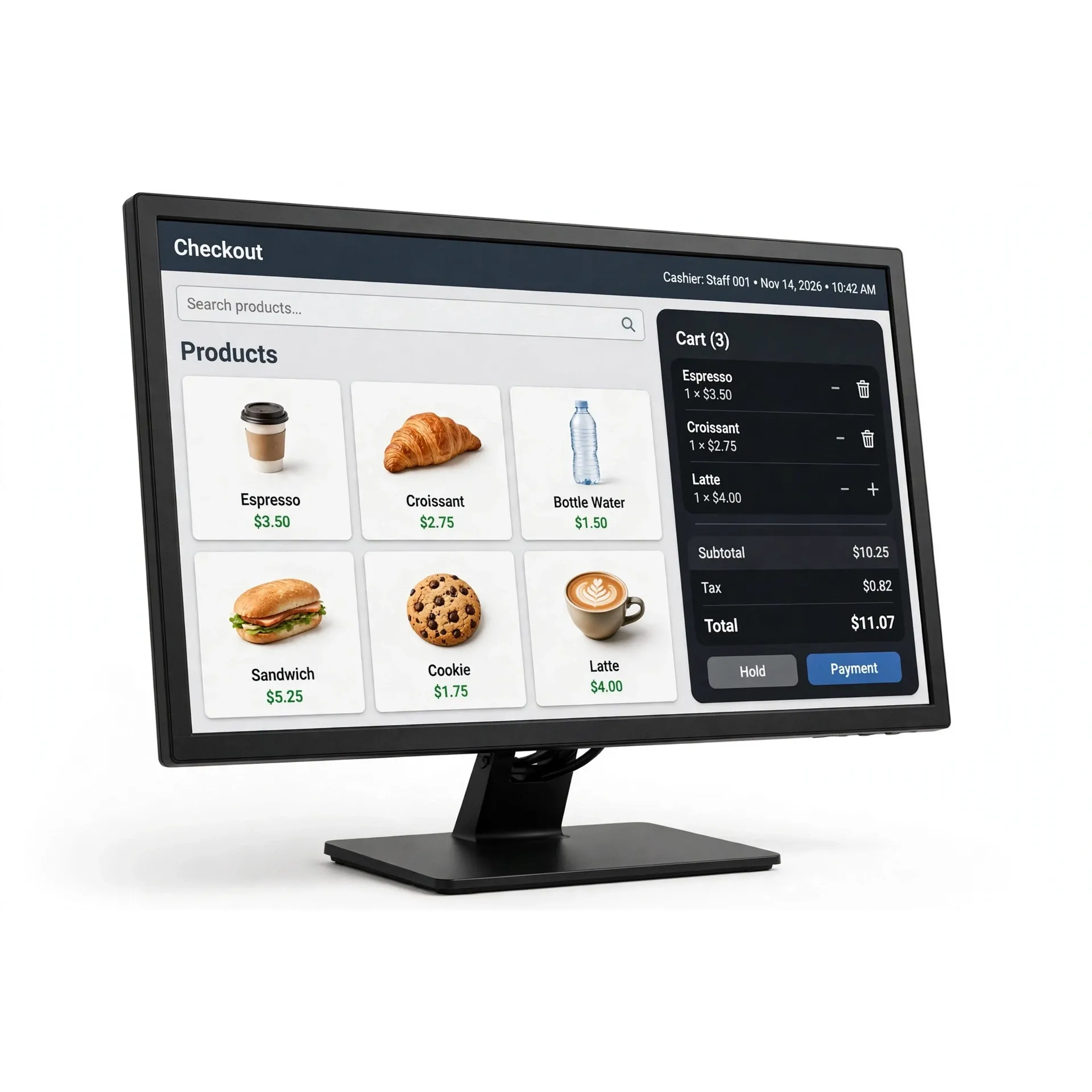
An office monitor that dies is an annoyance. An industrial touch monitor that dies stops a machine, a kiosk, or a production line — and the replacement has to fit the same cut-out, the same mounting points, and the same cables, or the downtime doubles. Most industrial monitor failures are not bad screens. They are wrong fits: a monitor built for a desk, installed in a cabinet; a screen bright enough for an office, facing a sunlit warehouse door; a touch panel that works with a bare finger and fails with the gloves the operators actually wear.
This guide covers the six decisions that decide whether an industrial touch monitor survives in your machine: frame type, touch technology, brightness, size and resolution, mounting, and environment. Get these six right and the monitor becomes the part you never think about again.
1. Frame type: open frame, panel mount, or enclosed
The first decision is how the monitor goes into the machine, because it decides everything else. There are three common forms, and they are not interchangeable.
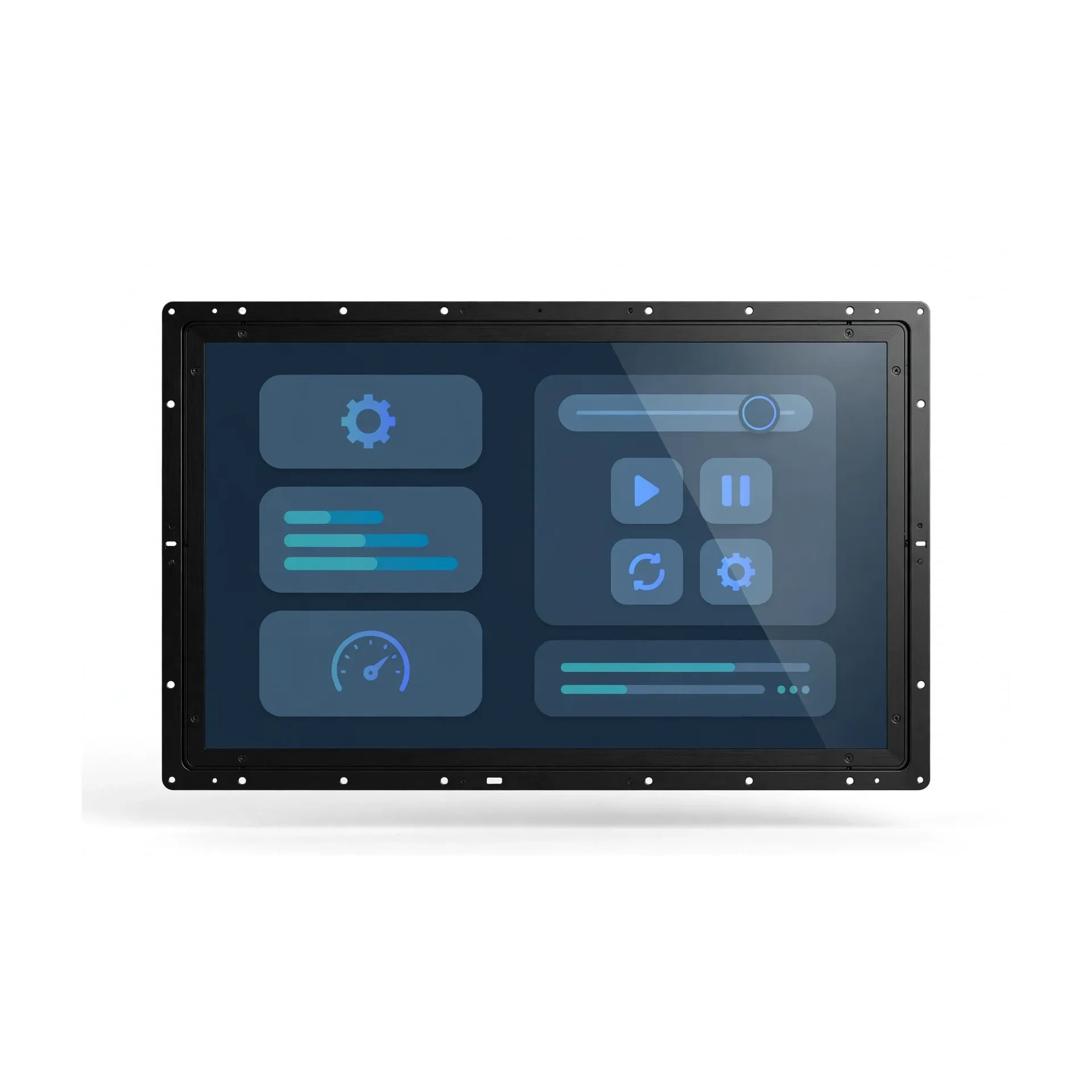
An open-frame monitor has no front bezel and no finished case. It bolts into a kiosk, cabinet, or machine from behind, and the machine's own front panel becomes the visible face. Open-frame monitors are the standard choice for self-service kiosks, ticketing machines, and equipment with a custom front panel. Published open-frame ranges run from 10.1 inches up to 27 inches, with some lines reaching 32 inches and 55 inches for large-format kiosks and signage. If you are building the enclosure yourself, open frame gives you the cleanest integration and the smallest total depth.
A panel-mount monitor is designed to sit flush in a rectangular cut-out in a control panel or cabinet door, sealed at the front. The front face is finished and rated against dust and water — commonly IP65, and IP66 on some industrial lines — so the panel can be wiped down and the cabinet stays sealed. Panel-mount sizes in published ranges run from 10.1 to 23.8 inches. If operators touch the screen through a machine panel, this is the form to order.
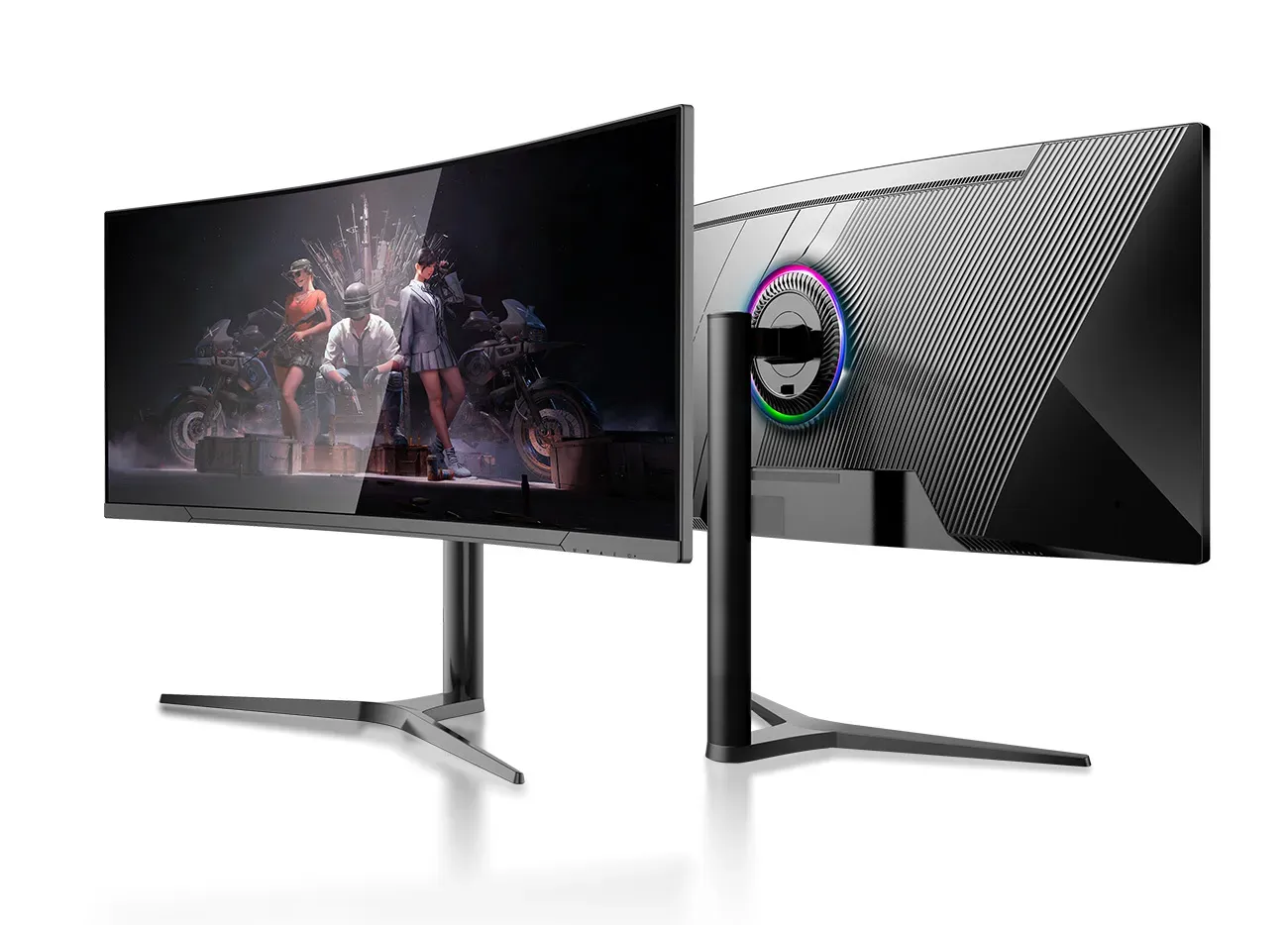
An enclosed monitor is a finished unit with its own case, ready to bolt to a wall, an arm, or a stand. It is the right choice when there is no cabinet to build into: a wall-mounted control screen, a machine-side display, or a warehouse terminal. Enclosed monitors are the simplest to install and the simplest to swap, because nothing about the machine has to change.
The rule is simple: if the machine has a front panel, order open frame or panel mount; if the screen stands alone, order enclosed. Ordering an enclosed monitor for a cabinet cut-out wastes depth and leaves a bezel where the panel should be; ordering an open-frame monitor with nowhere to mount it leaves a bare unit that cannot be installed at all.
2. Touch type: capacitive, resistive, or infrared
Most industrial touch monitors today use projected capacitive (PCAP) touch, 10-point — the same technology as a phone screen. It responds to a light tap, supports pinch and swipe, and works through a thin screen protector or a cover glass up to 5 mm thick. Published PCAP touch monitors run from 7 inches to 43 inches, and 10-point multi-touch is the standard across that range. For a kiosk, a control panel, or any station where operators tap quickly with bare hands, PCAP is the right choice.
Resistive touch is the older technology, and it still has a place. A resistive screen senses pressure, so it works with gloves, a stylus, a pen, or a wet finger — anything capacitive touch ignores. Published resistive models include 15-inch 4:3 screens at 1024×768 and 5-wire resistive variants of industrial lines. If the station involves thick gloves, wet hands, or a stylus — a kitchen, a workshop, a cold store — resistive touch is the practical choice, and the slower, firmer tap is a fair trade for a screen that always responds.
Infrared touch is the third option, offered on some open-frame and large-format lines. It senses a finger breaking a grid of infrared beams across the screen, so it works with any object and any glove, and there is no touch layer on the glass at all. It suits large screens and public kiosks where the touch surface takes hard use.
One check before you order: test the touch with the gloves your operators actually wear. Some capacitive screens work with thin latex gloves and fail with thick insulated ones. If the failure follows the glove, the fix is a different touch technology for that station, not a different monitor brand.
3. Brightness: order for the brightest hour, not the average one
Brightness is measured in nits (cd/m²), and the number you need depends on the brightest hour at the installation site, not the average one. A standard industrial touch monitor at 250 to 350 nits is comfortable indoors under normal lighting — most published models in the 10 to 27-inch range sit in that band, with some lines offering 450 nits and published ranges reaching 600 nits for brighter rooms.
For a bright factory floor, a storefront kiosk, or a screen near a window, order higher. Published panel-mount lines offer brightness options from 250 up to 1000 nits, and one embedded 12-inch model is published with a 250 to 1500-nit range for sites where the light changes through the day. For genuinely outdoor installations — a drive-through kiosk, a transit display, a yard terminal — outdoor-rated displays are published at 1500 to 3000 nits, with some outdoor lines rated at 3000 nits and IP66 sealing.
A quick test costs nothing: shade the screen with your hand at the worst hour of the day. If operators can read it and tap accurately in the shade, brightness is the problem, not the touch panel. Order the brightness for the brightest hour — and check the angle too, because a screen tilted away from the window often needs less brightness than one facing it.
4. Size and resolution: match the machine, not the catalogue
Industrial touch monitors are published from 7 inches to 55 inches, but the useful range for most machines is 10.1 to 32 inches. Small screens — 10.1, 12, and 15 inches — suit control panels, machine HMIs, and compact kiosks. Mid sizes — 15.6, 17, 19, 21.5, and 23.8 inches — suit operator stations, self-ordering, and wall-mounted terminals. Large screens — 27, 32, and above — suit information displays, large kiosks, and signage.
Resolution follows size, but not always in the way buyers expect. A 15-inch 4:3 screen at 1024×768 is still a published standard for industrial machines, because it matches the cut-out and the software of equipment designed years ago. A 17-inch or 19-inch screen at 1280×1024 serves the same legacy role. Modern widescreen models are Full HD 1920×1080 from 15.6 inches upward, with 1366×768 on some 10.1-inch and 18.5-inch models and 1280×800 on compact 10.1-inch open-frame units.
Before ordering, measure three things: the cut-out the screen must fill, the mounting points behind it, and the resolution the software was designed for. A screen that is the right size but the wrong aspect ratio either leaves a gap in the panel or stretches the interface. The economical repair is a monitor that matches on all three — size, mounting, and resolution — so it drops into the existing machine without changing anything else.
5. Mounting: VESA, snap-in, or panel
Mounting is the decision buyers check last and regret first. Most industrial touch monitors follow the VESA standard — VESA 75×75 mm on compact models, VESA 100×100 mm on larger ones, and VESA 75×100 on some 27-inch models. A VESA mount means the same screen can sit on a desktop stand, bolt to a pole mount, or fix to a wall arm, and it means the replacement screen fits the mount that is already installed.
Open-frame monitors add a second option: snap mounting, where the unit clips into the cabinet from behind and is held by brackets rather than bolts. Panel-mount monitors mount through the cut-out itself, with the front bezel sealing against the panel face. Rear mounting — bolting through the back of the frame — is the standard for closed-frame units built into machinery.
Check the mount before you check the screen. A screen on a loose mount gets blamed for missed taps that are really the whole unit moving. A fixed mount holds the screen at the same angle for every operator and survives the knock that sends a standing screen sliding.
6. Environment and lifetime: heat, dust, and 24/7 duty
A kitchen pass, a warehouse dispatch desk, and an air-conditioned control room are three different environments, and a screen built for one will age fast in another. Heat dries out adhesives and shortens backlight life; cold makes touch panels sluggish; dust and grease creep into edges and connectors.
The numbers to check are published on the datasheet, not the brochure. Operating temperature: published industrial lines run from −20 °C to +70 °C on panel-mount and open-frame series, with some compact models rated −10 °C to +60 °C and large-format open-frame units rated −5 °C to +60 °C. If the site freezes overnight or bakes in summer, check the low and high ends, not the average.
Front sealing: an IP65-rated front keeps dust and water jets out of the panel face, and IP66-rated fronts are published on some industrial lines for wash-down areas. A simple rule: if the environment would damage a laptop in a year, it will damage an office monitor too. Match the screen to the site first, and the screen will last.
Duty cycle matters just as much. Published industrial lines are rated for 24/7 operation, and mean time between failures (MTBF) of 50,000 hours is published across several series — roughly six years of continuous running. A screen rated for 24/7 duty has a backlight and a power supply built for it; an office screen pressed into 24/7 service fails early, and the failure always comes at the worst hour.
7. Ports: video and touch are two connections, not one
A touch monitor needs two connections to the PC: video to show the picture, and a USB cable to carry the touch signal back. If the touch cable is loose or plugged into a dead USB port, the picture looks perfect and the touch does nothing — the single most common "dead touch screen" in the field, and it costs nothing to fix.
Published industrial touch monitors carry VGA and HDMI as standard, with DVI and DisplayPort on many series. Check which video input your PC actually outputs before ordering, and confirm the USB touch port is on the same unit. Then check the cable ends for bent pins and the ports for dust. A five-minute check of cables and ports saves a return shipment.
Industry example: matching the screen to a harsh site
One published industry case: a 15-inch industrial PCAP touch monitor is featured in a water-treatment case study from touch-display maker TAICENN — the screen was chosen because the site needed a sealed front and a wide operating temperature, not because it was the brightest or the largest screen in the range. The logic is the lesson: match the screen to the environment first, and the rest of the specification follows.
This is a published industry case from another manufacturer, not a GHI customer.
A checklist before you buy
- Frame: open frame for a custom cabinet, panel mount for a cut-out, enclosed for a wall or arm
- Touch: 10-point capacitive for bare hands; resistive where gloves, water, or styluses rule; infrared for large public screens
- Brightness: ordered for the brightest hour (250–350 nits indoors; up to 1000 nits for bright sites; 1500–3000 nits outdoors)
- Size and resolution: measured against the cut-out, the mounting points, and the software
- Mount: VESA 75/100, snap-in, or panel mount — fixed, no wobble
- Environment: IP65 or IP66 front, temperature range checked against the site, 24/7 duty where the machine never sleeps
- Cables and ports: video (VGA, HDMI, DVI, or DisplayPort) and touch (USB) both connected and tested
What this site sells for this job
Industrial Touch Monitors — open-frame, panel-mount, and enclosed touch monitors from compact 10.1-inch control screens to 27-inch kiosk displays, for machines, kiosks, control cabinets, and harsh sites. Every specification quoted on a product page comes from the manufacturer's published data; anything not published is left out rather than guessed.
Get a matched recommendation: tell us your machine and site — cabinet or cut-out size, mounting, lighting, temperature, and the system it plugs into — and the GHI Monitor team will recommend an industrial touch monitor that fits and reply with a wholesale quote within one business day. Use the Get a Quote form or email ghipos@aliyun.com.